Comment
Comments are internal notes, reminders, or explanations that can be placed directly within a Surfer project document (.SRF). They are highly useful for:
-
Collaboration: Sharing files between clients and stakeholders to exchange suggestions and changes.
-
Instruction: Creating a document that walks new users or clients through the specific steps taken to create a map.
-
Posterity: Preserving a historical record of exactly what data or processes were used to build the file.
Comments consist of a marker in the plot window and associated text located in the Comments window.
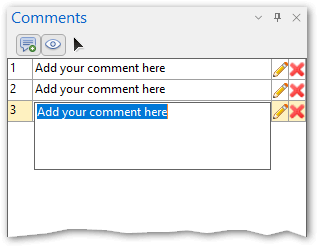
The Comments window
The Comments Window
The Comments window allows you to view, edit, and manage all comments within the document. If the window is closed, you can reopen it by clicking the Home | Insert | Comment command or toggling the View | Show/Hide | Show Comments command.
Toolbar Commands
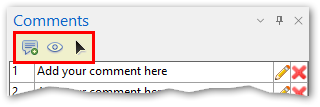
The toolbar at the top of the Comments window contains the following options:
-
Add Comment:
 : Functions exactly like the ribbon command; click it to enter comment mode and add a new marker in the plot window.
 -
Show Comments:
 : Controls the visibility of the comment markers in the plot window. Toggling this off simply hides the markers; it does not delete them. The state of this button always matches the View | Show/Hide | Show Comments ribbon command.
 -
Select/Move Comment:
 : Click this button to select and reposition a comment marker in the plot window (for example, if an issue is resolved and the marker needs to be moved). Note: When this button is depressed, you can only select comments in the plot window. You must press ESC to exit this mode before you can select other objects like maps or color scales.
Comment Tools
Next to each comment in the list are two tools for modifying the entry:
-
Edit :
 : Enters editing mode so you can modify the text of the comment. Alternatively, you can double-click directly on the comment text to edit it.
 -
Delete :
 : Deletes the comment entirely. Because deletion is permanent and cannot be undone via the Undo command, a confirmation warning will appear before the comment is removed.
Comment Visibility and Output
Comments are designed strictly for internal project use and collaboration.
-
Visibility: You can quickly toggle the visibility of all comment markers on the page by clicking the View | Show/Hide | Show Comments command in the ribbon.
-
Printing and Exporting: Comments DO NOT appear in printed outputs or exported image/vector files (such as PDF, JPG, etc.). They remain saved only within the Surfer project file (.SRF).
Creating a Comment
To create a comment:
-
Click the Home | Insert | Comment command. The mouse pointer turns into a crosshair to indicate you are in comment mode.
-
Click on the specific location in the plot window where you want the comment marker to appear.
-
The Comments window will automatically open, and the new comment will be selected so you can instantly type your text. Press ENTER when finished typing.
-
Note: Comment mode is persistent, meaning you can continue clicking in the plot window to drop as many comments as you need. To exit comment mode, press the ESC key twice, click the Select tool, or click the Add Comment command again.
-