Show Levels Dialog
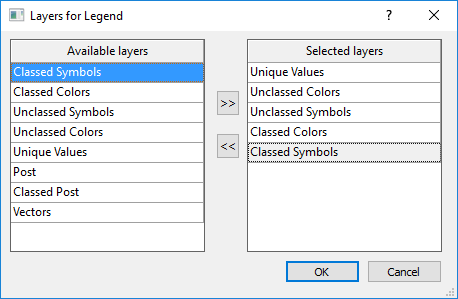
Click the Select levels... button in the Properties window Layers page to add, remove, and move map layers in the legend.
|
|
|
Add, remove, and move layers in the Layers for Legend dialog. |
Show Levels
The layers that can be added to the legend are listed in the Level column of the table. One or more layers must be selected to add a layer to the legend. Select a layer by checking the box in the Show column, in the desired row. Select multiple layers by holding CTRL while clicking on the layer names. Select a group of layers by clicking the first layer, holding SHIFT, and clicking the last layer. The first, last, and all layers between are selected. Deselect a layer by selecting another layer, or by holding CTRL and clicking the selected layer.
Clicking the checkbox in the Show column toggles the checkbox. It has no impact on whether the row is selected or not.If the checkbox is clicked for a row that is one of the row(s) already selected, then the checkbox for all of the selected row(s) will be updated. If the checkbox is clicked for a row that is not selected, then that row’s checkbox will be updated but none of the selected rows' checkboxes will be updated.
OK and Cancel
Click OK to apply the changes to the legend. Click Cancel to close the Layers for Legend dialog without making any changes to the legend.