Transform
When you select and drag an object, or resize it via the sizing handles, you are transforming the object. The Align Objects, Rotate, and Free Rotate commands also transform the selected object. The accumulated effects of all transformations applied to an object are recorded as a set of page transformation parameters.
Transform Dialog
The Home | Selection | Transform command or the  button open the Transform dialog. This dialog allows you to read, set, and reset the six page transformation parameters associated with the selected object. These six parameters allow for four distinct transformations: scale, shear, rotation, and offset. The coordinate origin for these transformations is the center of the page. Thus, in the untransformed state, the center of an object coincides with the center of the printed page.
|
|
|
Use the Transform dialog to change the transform parameters for the selected object. |
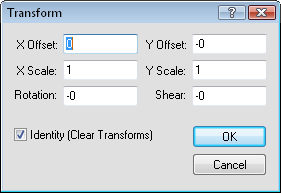
X Offset
The X Offset specifies the horizontal translation (in page units). A positive X Offset shifts the object to the right, a negative X Offset shifts the object to the left.
Y Offset
The Y Offset specifies the vertical translation (in page units). A positive Y Offset shifts the object up, a negative Y Offset shifts the object down.
X Scale
The X Scale parameter modifies the width of the object. A value of 2.0 doubles the width, a value of 0.5 cuts the width in half, while a value of 1.0 leaves the width unchanged.
Y Scale
The Y Scale parameter modifies the height of the object. A value of 2.0 doubles the height, a value of 0.5 cuts the height in half, while a value of 1.0 leaves the height unchanged.
Rotation
The Rotation specifies a counterclockwise rotation about the origin. The rotation angle is given in degrees.
Shear
The Shear changes the X coordinate as the Y coordinate changes. For example, a shear of 1.0 shifts the X coordinate 1 inch to the right for every inch along the Y axis.
Identity (Clear Transform)
When you check the Identity (Clear Transform) box, the transformation is reset back to the identity; that is, the selected object is untransformed.
The order in which the transformations are applied makes a difference (these transformations are not commutative). The four transformations are applied in the following order: scale, shear, rotation, and translation.
Error | Exporting Rotated Maps (Map Units)
Applying transformations, such as Rotation or Shear, to a map object changes its orientation relative to the Cartesian grid of the page. Because most spatial file formats require standard Cartesian alignment, Surfer cannot generate accurate Map Units for rotated maps during export.
If a map is rotated or sheared, the Map Units option will be unavailable in the Export Options dialog, and the export will default to Page Space coordinates. This can cause the exported map to appear in the wrong geographic location (e.g., "ending up in Africa" due to page unit coordinates being read as lat/long).
To export a map using accurate Map Units, you must first remove the rotation:
-
In the Contents window, select the Map object.
-
Click the Home | Selection | Transform command to open the Transform dialog.
-
Check the Identity (Clear Transform) box.
-
Click OK.
-
The map will revert to its original unrotated state, and Map Units will be available during export.
References
Foley, James D. and Andries van Dam (1990),Computer Graphics: Principles and Practice, Addison-Wesley, Reading, MA, 1174 pp. ISBN: 9780201121105
Hearn, D. and M.P. Baker (1997),Computer Graphics C, 2nd edition, Prentice Hall, Upper Saddle River, NJ, 652 pp., ISBN 0-13-530924-7.