Record Video
Click 3D View | Output | Record Video or the  button to open the Record Video window.
This feature allows you to record and save an MP4 video of the 3D view window while manually controlling the camera's movement and perspective. It records only the 3D view window, excluding the mouse pointer, ribbon, status bar, or other windows.
This feature gives you full freehand control of the camera, allowing you to trackball, zoom, and pan as you record. Only the workspace is recorded; the mouse pointer and user interface elements are excluded.
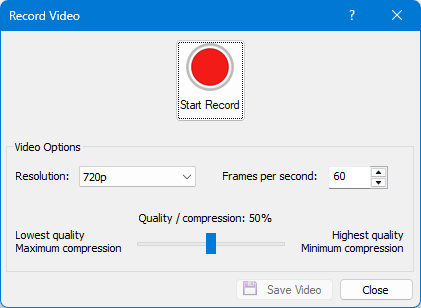
The Record Video dialog window.
Record Video window
The Record Video window lets you manage your recording settings. Recording settings can be changed after you record a video, allowing you to save multiple versions of the same video with different settings
-
Start Record : Start capturing frames of the plot window and store them in temporary disk space.
-
Stop Record : Stop capturing frames of the plot window and store them in temporary disk space, only displays if a recording has been started.
-
Timer : Once a video recording has started a timer displays under the record button that displays the length of time that the program has been recording a video.
-
Resolution : Sets the video resolution (e.g., 480p, 1080p). "Original" matches the resolution of the 3D View window.
-
Frames per second : Number of frames per second in the video file
-
Quality / compression : Adjusts the balance between video quality and file size.
-
Save Video : A MP4 video is generated containing the captured frames with the selected video settings, opens a Save As dialog to specify where to save the video.
-
Close : Closes the Record Video window without saving any video file in progress.
Workflow
-
Open the Record Video dialog by clicking the 3D View | Output | Record Video command.
-
Click the Start Record button. Surfer will begin capturing frames and storing them in temporary disk space.
-
Perform your desired pan and Zoom camera movements. You can also toggle displayed elements on or off.
-
Click the Stop Record button to end the recording.
-
In the Record Video dialog, adjust settings for Resolution, Frames per second, and Quality / Compression. These settings apply when the video is saved.
-
Click Save Video to generate the final MP4 file. A progress dialog will show an estimated time remaining.
For optimal performance, a new option, Reduce disk usage while recording video, is available under File | Options | 3D View. Disabling this option is faster but uses more temporary disk space.
Important Notes
-
File Format: Videos are saved as MP4 files, which are smaller and more efficient than previous formats like AVI.
-
Audio: The videos contain only a video track and no audio.
-
Video settings :If you view the recorded video while the Record Video window remains active and want to alter the settings, you do not have to re-record the screen. You can simply update the settings and click Save Video again to save the exact same video with your new preferences.
-
Performance: For users with limited temporary disk space, enabling File | Options | 3D View | Reduce disk usage while recording video will compress frames during recording, but this will slow down the process.
-
System Requirements: Some Windows editions, such as Windows 10/11 N and KN, require the Windows Media Feature Pack to use this feature.
Fly-Through recording
While the Record Video feature records what is displayed in the plot window with freehand camera control, the 3D View | Fly-Through feature allows you to set a predetermined flight path for the video. This allows you to set a flight path for the video recording.